

Why connect MCP servers
In Lovable, MCP servers unlock two key capabilities:- Bring your existing context into Lovable.
The Lovable Agent can read your team’s documentation, tickets, and design files to build prototypes and flows aligned with your standards. - Connect your Lovable apps to your workflows.
The Lovable Agent can take follow-up actions in your connected tools, such as updating ticket statuses, adding prototype links as comments, or creating new items when supported.
Prebuilt MCP servers
How to connect a prebuilt MCP server
To use prebuilt integrations with popular third-party apps and services:- Go to Settings → Integrations → Your MCP servers.
- Select an MCP server (for example, Notion, Linear, or Atlassian).
- Click Connect. Sign in and grant Lovable access to your account.
- Go to Settings → MCP access and toggle Enable MCP access (requires instance owner or admin permissions)
- For each workflow you want to expose, go to Settings in the workflow editor and toggle Available in MCP.
Custom MCP servers (Business and Enterprise)
For full flexibility, you can connect custom MCP servers to bring internal or third-party systems into Lovable. This is perfect for private APIs, internal CRMs, or custom data sources. Explore remote MCP servers, a curated list of high-quality remote MCP servers compatible with Lovable.How to connect a custom MCP server
To connect a custom or internal MCP server:- Go to Settings → Integrations → Your MCP servers.
- Click Set up next to New MCP server.
- Server name: Enter a clear name for your server (for example, Internal CRM or Analytics API).
- Server URL: Enter the address where Lovable can reach your MCP server.
- Authentication:
- OAuth (default): Lovable uses OAuth by default. After you click Add & authorize, you’ll be prompted to authorize.
- Bearer token or API key: For servers that don’t support OAuth, you can authenticate using a bearer token or API key.
- No authentication: Connect without credentials if the server doesn’t require authentication.
- Add server. The custom MCP server now appears in your list and can provide contextual data for builds.
Practical examples
Each connected app instantly becomes available as context for the Lovable Agent. You can interact with connected tools using natural prompts.Security and permissions
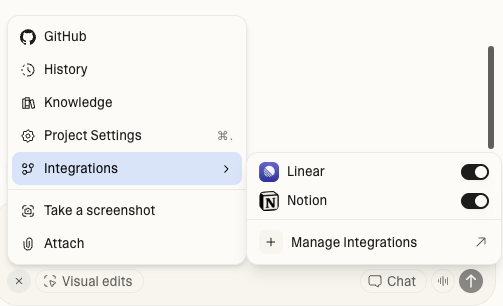
MCP server connections are user-based and personal. You can review or revoke connections anytime in Settings → Integrations. For quick access on project level, click+ in the prompt box and go to Integrations.
- Go to Settings → Privacy & security to enable or disable all MCP server access for the entire workspace.
- Go to Settings → Integrations → Admin settings to enable or disable individual MCP servers.