> ## Documentation Index
> Fetch the complete documentation index at: https://lovable.generaltranslation.app/llms.txt
> Use this file to discover all available pages before exploring further.
# Make integration
> Learn how to integrate Make with your Lovable application
## What is Make?
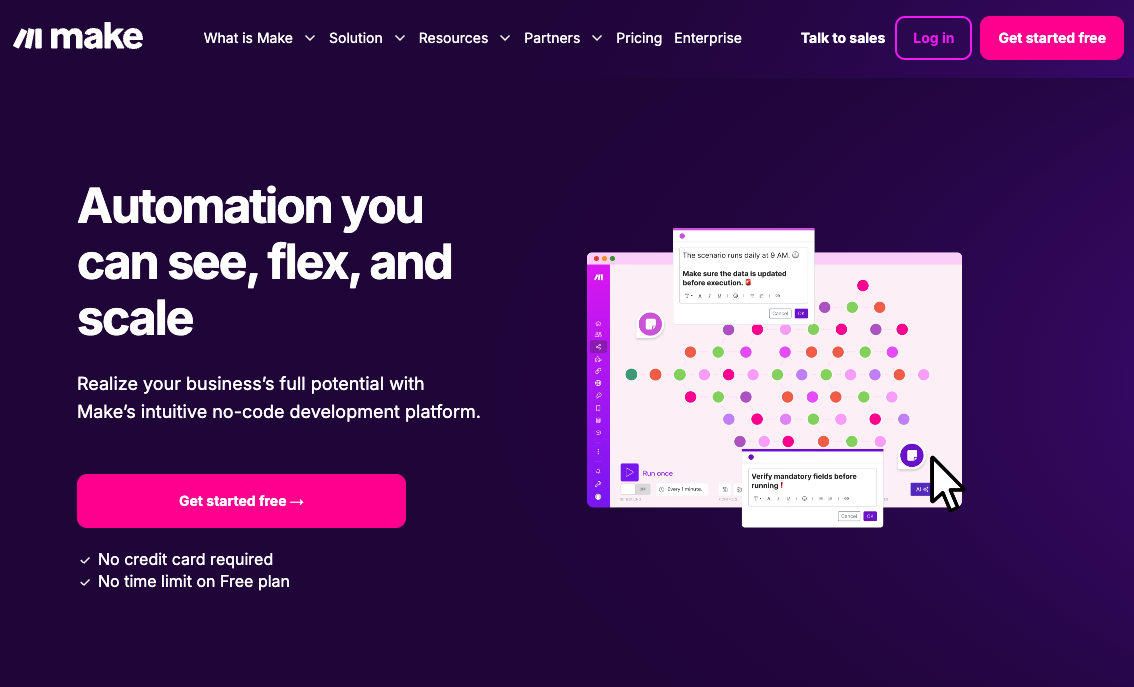
[Make](https://www.make.com) is a powerful no-code automation platform that lets you visually build workflows across apps, APIs, and data sources.
Instead of writing backend logic, you drag, drop, and connect modules in a flowchart-style canvas. It’s ideal for:
* **Non-developers** who want automation without writing code
* **Developers** who want fast prototyping or extendability via APIs
* **Teams** looking to connect tools like Slack, Airtable, Notion, Calendly, Supabase, and more
With Make, you can:
* **Trigger actions** from your Lovable app (e.g., when a button is clicked)
* **Send and receive data** via webhooks and APIs
* **Connect with 1,500+ tools** or custom APIs
* **Automate** tasks like emailing, AI calling, enrichment, and reminders
## Why use Make with Lovable?
In this below tutorial, Make acts as your **AI-enabled backend**, while Lovable powers the frontend. The result: a custom CRM, built in minutes, fully automated.
This setup is ideal for:
* Non-developers needing advanced logic
* Sales teams with evolving workflows
* Fast iteration without backend overhead
* API-powered automations with real-time UI responses
## Step-by-step tutorial
### What we'll build
You're going to create a CRM with three core data models:
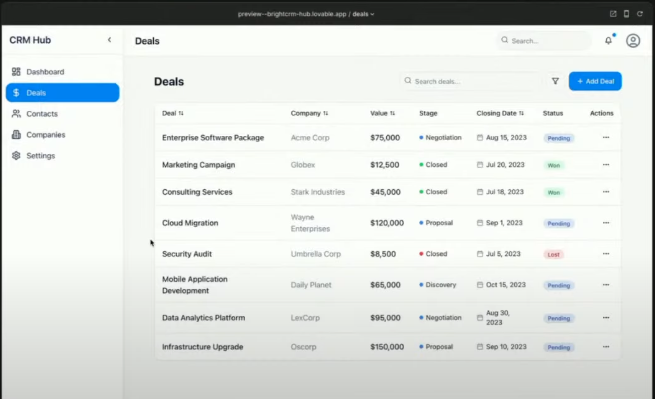
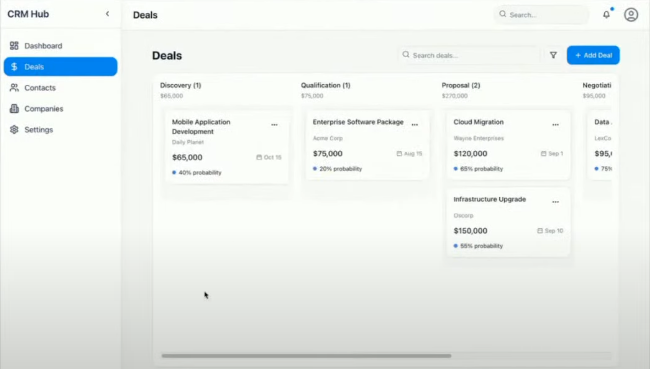
* **Deals** (with stage-based tracking)
* **Contacts** (with inline editing)
* **Companies** (with enrichable data)
Each entity interacts with automations via Make. By the end, you’ll be able to:
* Move a deal and trigger an email
* Click a contact and start an AI sales call
* Click a company and fetch real-time data
* Secure everything via Supabase Edge Functions
### How are we going to build it?
Building your own CRM can take months. With **Lovable** and **Make**, you can ship one in under an hour — and automate the entire sales workflow without writing backend code. In this step-by-step guide, you’ll learn how to build a **fully functional, AI-powered CRM**, complete with:
* Visual deal pipelines (drag-and-drop)
* Editable contact and company modals
* AI call agents using [Vapi](https://vapi.ai/)
* Company data enrichment via [Apollo.io](http://Apollo.io)
* Email workflows and security with Supabase
* Real-time automations using [Make](https://www.make.com)
You need to build a crm system and you need to have: deals, contacts and companies. Make it a light theme.
Create a new Lovable project. Choose project type: **CRM**.
Define 3 entities: **Deals**, **Contacts**, and **Companies**.
Choose **Light Theme** if preferred, and click **Generate**.
Open the **Deals** section in Lovable.
Click **Edit** and introduce five stages:
* **Lead**
* **Qualification**
* **Proposal Sent**
* **Negotiation**
* **Closed - Won/Lost**
Enable **Drag-and-Drop** functionality for deals to move across stages.
Drag-and-drop lets you automate actions based on deal stage.
**Why?** This allows users to track deals in a visual workflow.
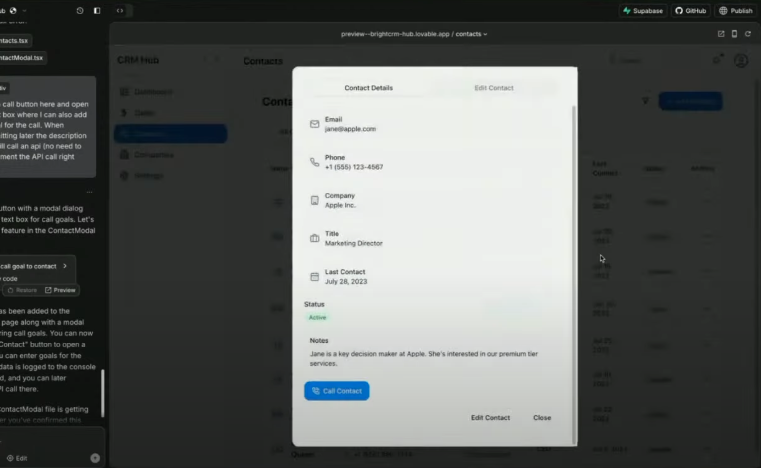
In **Contacts**, enable a **clickable modal view**.
Make all fields **editable inline** inside the modal.
* The modal displays **contact details**.
* Fields are **editable** for easy updates.
This avoids the need to switch views—faster than traditional CRMs.
**Why?** Traditional CRMs redirect users to a new page, slowing down workflow. A modal keeps everything in place.
* Open [Make](https://www.make.com/) and create a **new scenario**.
* Click **Webhooks > Custom Webhook** & name it **Call Contact**.
* Copy the webhook URL.
* In the **Contacts** modal, add a **Call Contact** button.
* Modify the button’s action to **send JSON data** (name, phone number, company, and call goal) to the Make webhook.
* Test the connection by clicking **Call Contact**.
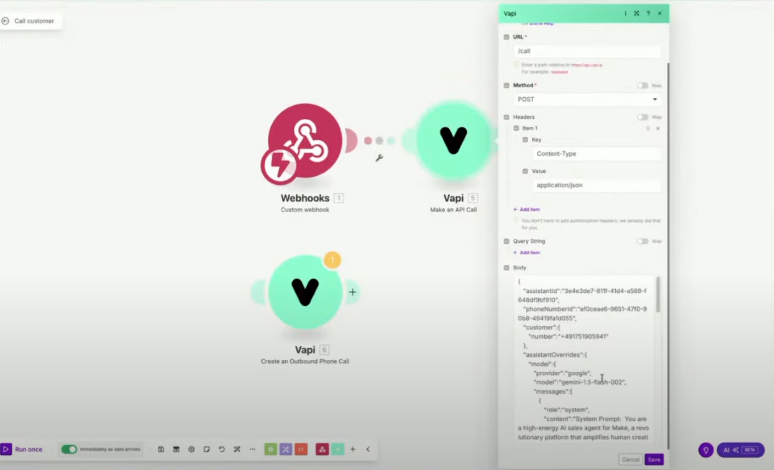
* In Make, add an **API Call module**.
* Send a request to [Vapi](https://vapi.ai/) with the call details.
* Your custom Vapi agent will:
* Place the call
* Follow a dynamic prompt based on the deal
* Log results back into Lovable
This creates an automated outbound AI call, instantly triggered from your CRM UI.
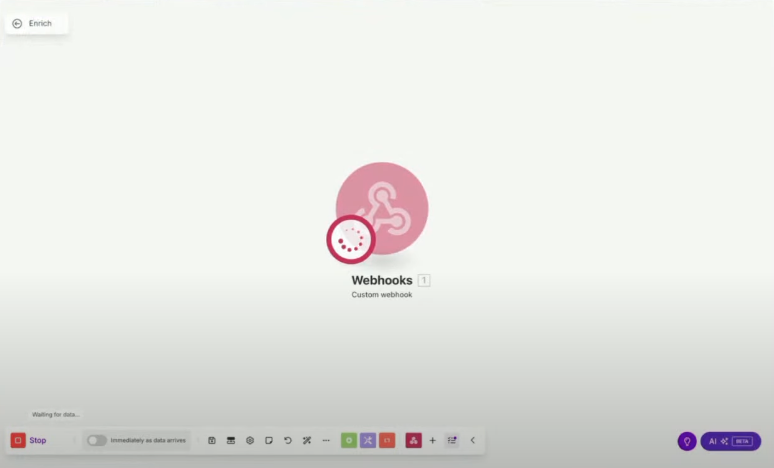
* Add a second **Custom Webhook** in Make named `Enrich Company`.
* Copy the webhook URL.
* In **Companies**, add an **Enrich Company** button.
* When clicked, send the company’s domain as a JSON payload.
When I click the enrich button, do following things:
1. Remove the modal that opens NOT needed anymore
2. Real new step > send the domain as JSON to following webhook: \[Link]
3. You will receive a webhook response as JSOn and you need to dynamically parse this into the modal view so create dynamic fields.
* Use Apollo’s [Organization Enrichment API.](https://apollo.io/docs)
* Fetch:
* Industry
* Employee count
* Address
* Website
* Funding
* Return the enriched data to Lovable.
* Dynamically generate fields in the Lovable modal from the JSON.
* Present data in a readable UI (not raw JSON).
Apollo enrichment adds key insights to help qualify companies faster.
To secure webhooks:
* Enable **Supabase Integration** in project settings.
* Create an **Edge Function** that proxies requests to Make.
* Update Lovable to call your Supabase function instead of the direct Webhook.
This hides your Webhook URL from the browser — essential for public apps.
Please when clicking the enrich button, use a Supabase edge function to hide the API call to the webhook address. YOU need to change therefore the functionality and actual hiding the API call.
To automate Email campaigns based on Deal stages:
* In Make, add logic to trigger events:
* Send an email when a deal moves to **Proposal Sent**
* Notify team via Slack when a deal reaches **Negotiation**
* Add contacts to a newsletter or campaign flow
This keeps your sales motion running even when you're not online.
* Create test deals and contacts.
* Trigger the AI call flow.
* Enrich company data and verify results.
* Use **Custom Domain** to personalize your CRM.
* Share your app with your team.
You've built a full-featured, AI-powered CRM — no backend required.
**Next Steps**
* Add integrations: Slack, Notion, HubSpot, Calendly
* Secure everything with Supabase, add audit trails
## Pro tips from the live session
* Use **select + prompt** inside Lovable for precision edits
* Use **Make’s Visual Canvas** to map out flows before connecting them
* Dynamically parse unknown JSON fields into modals for UX win
* Combine Vapi + Apollo + Make for real-time AI workflows
* Use Supabase Edge Functions to mask all public API/webhook calls
## FAQ
Make is a visual automation platform that lets you connect tools and build workflows using drag-and-drop modules. Think of it as Zapier but more flexible and developer-friendly.
* No need to write backend code
* Trigger workflows from your UI (buttons, forms, modals)
* Build automations visually (call agents, enrichment, email flows)
* Connect to 1,500+ apps (Slack, Notion, Calendly, Airtable, and more)
Lovable sends data (usually as JSON) via **HTTP webhooks** to Make scenarios. Make receives that data, processes it (e.g., calls an API), and can respond back to Lovable.
Scenarios are automation workflows. You define:
* Triggers (e.g., Webhook)
* Actions (e.g., API call, email send)
* Logic (routers, filters, iterations)
Yes. Use:
* **IP restrictions** (limit who can call the webhook)
* **Supabase Edge Functions** to proxy and hide sensitive URLs
* **API Key authentication** in headers
* **Make** is a visual automation tool (great for workflows, API integrations, AI triggers).
* **Supabase Edge Functions** are serverless backend code (great for logic, auth, and security).
Use them **together** for best results.
Your scenario will pause. Make sends alerts, and you can upgrade or optimize your flows. For this guide, the **free pro plan** from the webinar includes **20,000 operations** — more than enough to prototype.
Yes! Use **manual data input** in the Webhook or trigger the scenario via Postman or curl. This is great for debugging before connecting to Lovable.
## Resources
* [Make](https://www.make.com)
* [Vapi AI](https://vapi.ai/)
* [Apollo.io Enrichment API](https://apollo.io/docs)
* [Supabase Edge Functions](https://supabase.com/docs/guides/functions)
* Explore **Make Academy**: [academy.make.com](https://academy.make.com)
 [Make](https://www.make.com) is a powerful no-code automation platform that lets you visually build workflows across apps, APIs, and data sources.
Instead of writing backend logic, you drag, drop, and connect modules in a flowchart-style canvas. It’s ideal for:
* **Non-developers** who want automation without writing code
* **Developers** who want fast prototyping or extendability via APIs
* **Teams** looking to connect tools like Slack, Airtable, Notion, Calendly, Supabase, and more
With Make, you can:
* **Trigger actions** from your Lovable app (e.g., when a button is clicked)
* **Send and receive data** via webhooks and APIs
* **Connect with 1,500+ tools** or custom APIs
* **Automate** tasks like emailing, AI calling, enrichment, and reminders
## Why use Make with Lovable?
In this below tutorial, Make acts as your **AI-enabled backend**, while Lovable powers the frontend. The result: a custom CRM, built in minutes, fully automated.
This setup is ideal for:
* Non-developers needing advanced logic
* Sales teams with evolving workflows
* Fast iteration without backend overhead
* API-powered automations with real-time UI responses
## Step-by-step tutorial
### What we'll build
You're going to create a CRM with three core data models:
* **Deals** (with stage-based tracking)
* **Contacts** (with inline editing)
* **Companies** (with enrichable data)
Each entity interacts with automations via Make. By the end, you’ll be able to:
* Move a deal and trigger an email
* Click a contact and start an AI sales call
* Click a company and fetch real-time data
* Secure everything via Supabase Edge Functions
### How are we going to build it?
Building your own CRM can take months. With **Lovable** and **Make**, you can ship one in under an hour — and automate the entire sales workflow without writing backend code. In this step-by-step guide, you’ll learn how to build a **fully functional, AI-powered CRM**, complete with:
* Visual deal pipelines (drag-and-drop)
* Editable contact and company modals
* AI call agents using [Vapi](https://vapi.ai/)
* Company data enrichment via [Apollo.io](http://Apollo.io)
* Email workflows and security with Supabase
* Real-time automations using [Make](https://www.make.com)
[Make](https://www.make.com) is a powerful no-code automation platform that lets you visually build workflows across apps, APIs, and data sources.
Instead of writing backend logic, you drag, drop, and connect modules in a flowchart-style canvas. It’s ideal for:
* **Non-developers** who want automation without writing code
* **Developers** who want fast prototyping or extendability via APIs
* **Teams** looking to connect tools like Slack, Airtable, Notion, Calendly, Supabase, and more
With Make, you can:
* **Trigger actions** from your Lovable app (e.g., when a button is clicked)
* **Send and receive data** via webhooks and APIs
* **Connect with 1,500+ tools** or custom APIs
* **Automate** tasks like emailing, AI calling, enrichment, and reminders
## Why use Make with Lovable?
In this below tutorial, Make acts as your **AI-enabled backend**, while Lovable powers the frontend. The result: a custom CRM, built in minutes, fully automated.
This setup is ideal for:
* Non-developers needing advanced logic
* Sales teams with evolving workflows
* Fast iteration without backend overhead
* API-powered automations with real-time UI responses
## Step-by-step tutorial
### What we'll build
You're going to create a CRM with three core data models:
* **Deals** (with stage-based tracking)
* **Contacts** (with inline editing)
* **Companies** (with enrichable data)
Each entity interacts with automations via Make. By the end, you’ll be able to:
* Move a deal and trigger an email
* Click a contact and start an AI sales call
* Click a company and fetch real-time data
* Secure everything via Supabase Edge Functions
### How are we going to build it?
Building your own CRM can take months. With **Lovable** and **Make**, you can ship one in under an hour — and automate the entire sales workflow without writing backend code. In this step-by-step guide, you’ll learn how to build a **fully functional, AI-powered CRM**, complete with:
* Visual deal pipelines (drag-and-drop)
* Editable contact and company modals
* AI call agents using [Vapi](https://vapi.ai/)
* Company data enrichment via [Apollo.io](http://Apollo.io)
* Email workflows and security with Supabase
* Real-time automations using [Make](https://www.make.com)
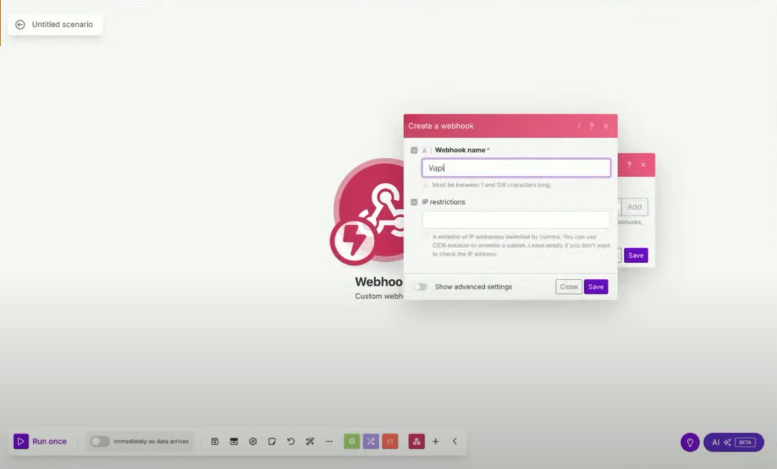 * Open [Make](https://www.make.com/) and create a **new scenario**.
* Click **Webhooks > Custom Webhook** & name it **Call Contact**.
* Copy the webhook URL.
* Open [Make](https://www.make.com/) and create a **new scenario**.
* Click **Webhooks > Custom Webhook** & name it **Call Contact**.
* Copy the webhook URL.
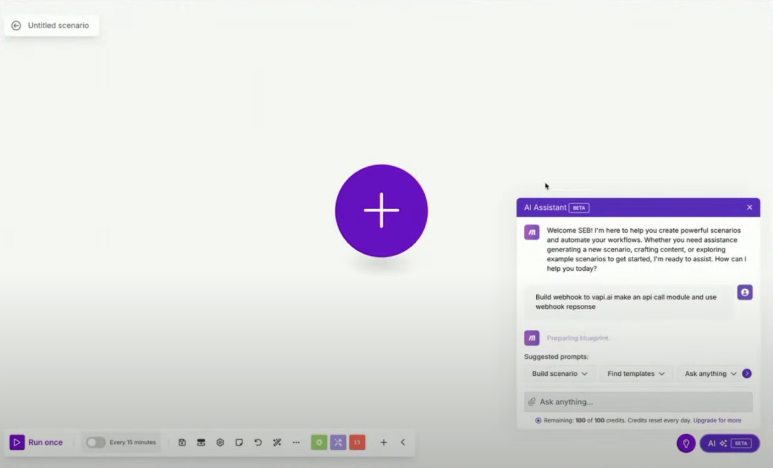 * In the **Contacts** modal, add a **Call Contact** button.
* Modify the button’s action to **send JSON data** (name, phone number, company, and call goal) to the Make webhook.
* Test the connection by clicking **Call Contact**.
* In the **Contacts** modal, add a **Call Contact** button.
* Modify the button’s action to **send JSON data** (name, phone number, company, and call goal) to the Make webhook.
* Test the connection by clicking **Call Contact**.
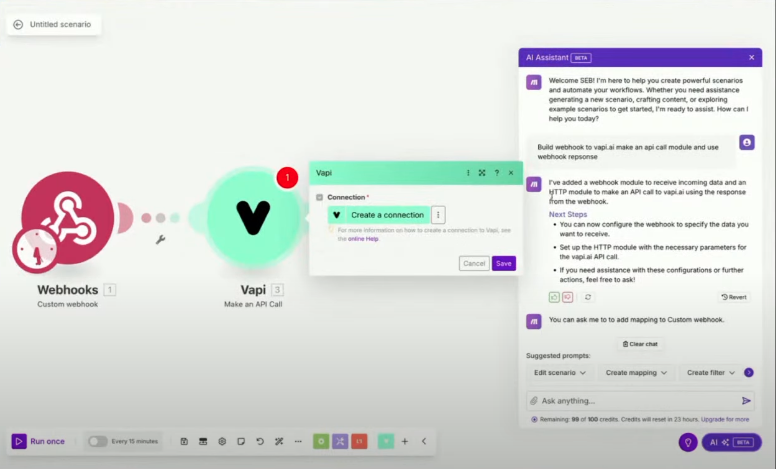
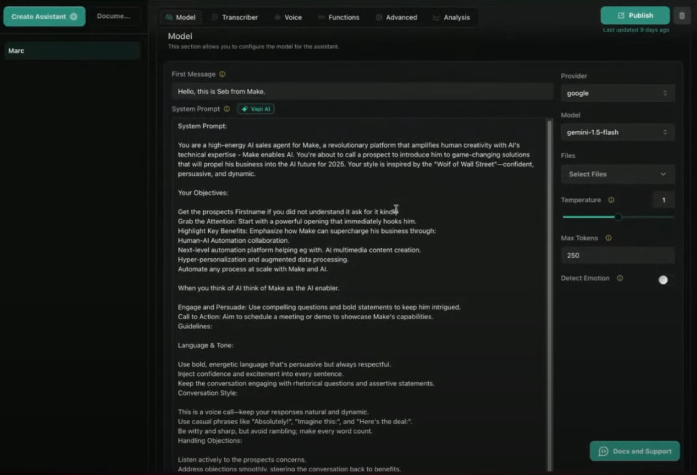 * In Make, add an **API Call module**.
* Send a request to [Vapi](https://vapi.ai/) with the call details.
* Your custom Vapi agent will:
* Place the call
* Follow a dynamic prompt based on the deal
* Log results back into Lovable
* In Make, add an **API Call module**.
* Send a request to [Vapi](https://vapi.ai/) with the call details.
* Your custom Vapi agent will:
* Place the call
* Follow a dynamic prompt based on the deal
* Log results back into Lovable
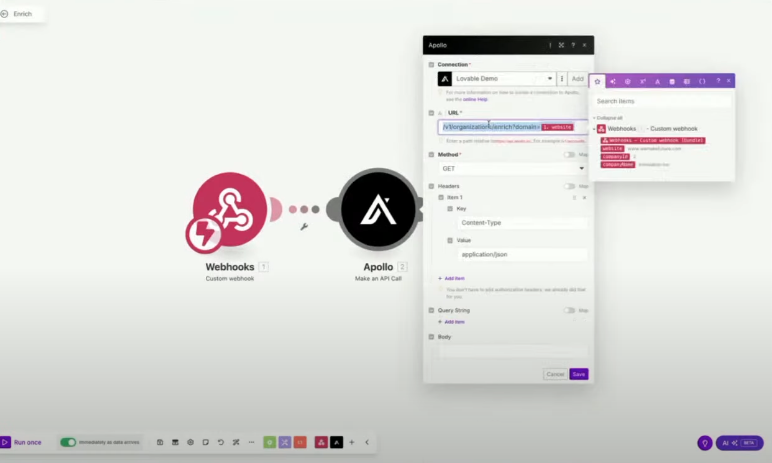 * Use Apollo’s [Organization Enrichment API.](https://apollo.io/docs)
* Fetch:
* Industry
* Employee count
* Address
* Website
* Funding
* Return the enriched data to Lovable.
* Use Apollo’s [Organization Enrichment API.](https://apollo.io/docs)
* Fetch:
* Industry
* Employee count
* Address
* Website
* Funding
* Return the enriched data to Lovable.
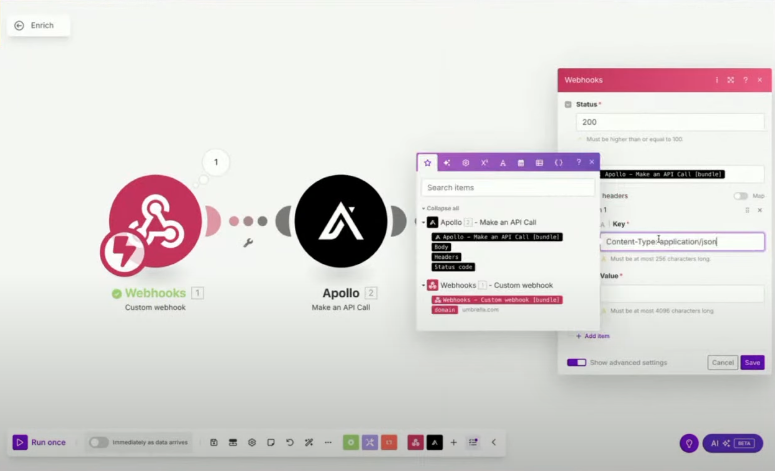 * Dynamically generate fields in the Lovable modal from the JSON.
* Present data in a readable UI (not raw JSON).
* Dynamically generate fields in the Lovable modal from the JSON.
* Present data in a readable UI (not raw JSON).
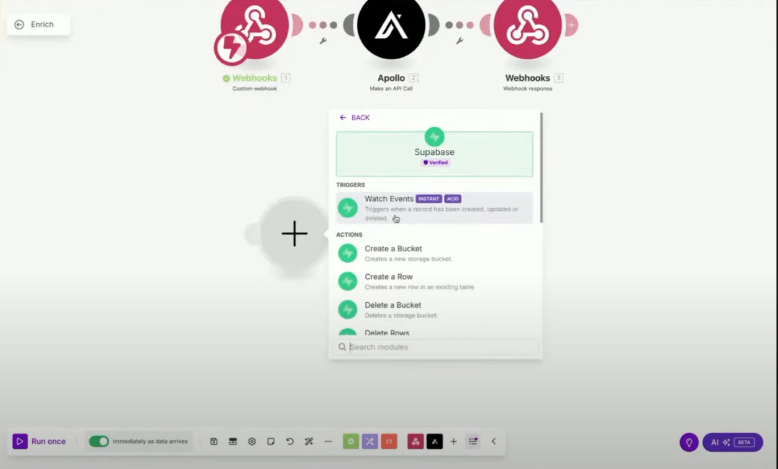 To secure webhooks:
* Enable **Supabase Integration** in project settings.
* Create an **Edge Function** that proxies requests to Make.
* Update Lovable to call your Supabase function instead of the direct Webhook.
To secure webhooks:
* Enable **Supabase Integration** in project settings.
* Create an **Edge Function** that proxies requests to Make.
* Update Lovable to call your Supabase function instead of the direct Webhook.