> ## Documentation Index
> Fetch the complete documentation index at: https://lovable.generaltranslation.app/llms.txt
> Use this file to discover all available pages before exploring further.
# 21st.dev integration
> Build High-Converting AI Landing Pages Using Lovable
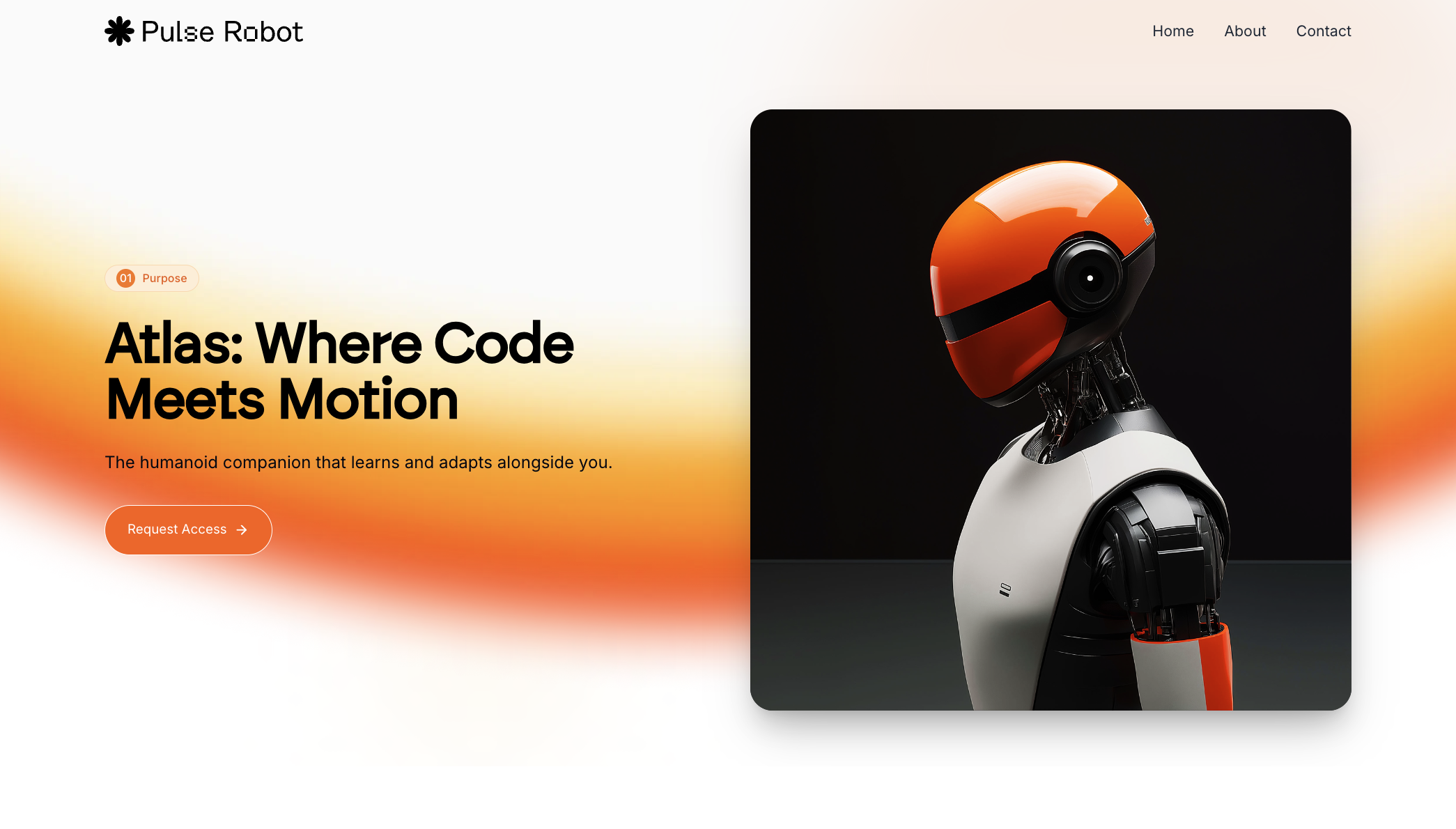
Most AI-generated landing pages look the same—vague sections, off-brand colors, and no personality. But it doesn’t have to be that way.
We are going to share a structured workflow using Lovable and 21stdev that creates landing pages clients *actually* love (like [this one](https://lovable.dev/projects/35d72d2e-6e25-40e5-9b0c-c0d1a7c1b727)).
 ## Step-by-step guide
From design inspiration to final polish, here’s the step-by-step guide he uses to build fast without sacrificing quality:
Before writing a single word of prompt, browse [Dribbble](https://dribbble.com/) or [Behance](https://www.behance.net/). Look for designs with:
* Clean typography and spacing
* Clear CTAs and minimal layout
* Subtle interactions (not overdesigned)
Pick something you can realistically replicate. Avoid overly complex 3D designs if you don’t plan to recreate them.
A real client asked for a "modern and minimal" design. That informed the visual starting point. Avoid picking something you can’t deliver.
Start your Lovable project by prompting:
Start with a blank empty project. We will be adding details afterwords.
Once you find your reference design, download it. If it saves in WebP format, use an online converter to change it to PNG so it can be easily used in Lovable or GPT workflows.
Tools we recommend: [https://cloudconvert.com/webp-to-png](https://cloudconvert.com/webp-to-png)
Use Lovable [Chat Mode](https://docs.lovable.dev/features/labs#chat-mode) to extract:
* Page sections (hero, features, FAQ, etc.)
* Layout structure, spacing, and content order
* Font families, color palettes, and gradients
* Animation types, hover effects, and transitions
Lovable [Chat mode](https://docs.lovable.dev/features/labs#chat-mode) (or customGPT) is also trained to recommend Unsplash images for blog thumbnails and illustrations.
Lovable occasionally mislabels things (e.g., "Space Grotesque" font was misspelled). Always review and correct prompt outputs before pasting into Lovable.
You can even ask Lovable chat mode to elaborate on sections or rewrite the prompt with better UX suggestions.
Paste the detailed prompt into Lovable Edit Mode. Then:
* Upload your PNG screenshot as a reference
* Add notes like "*Use Space Grotesque font*" or "Use Unsplash for blog thumbnails"
This combo leads to far more accurate designs than vague, single-sentence prompts.
Please note how much Lovable faster this feels compared to setting up Tailwind or Bootstrap manually just a year ago.
Use Lovable’s [visual editing tool](https://docs.lovable.dev/features/visual-edit) to:
* Resize images (e.g., "make this image 800px wide")
* Position hero images (e.g., "place this image on the right side")
* Align design sections with the reference image
Combine this with natural language edits for precision.
Use [21stdev](https://21st.dev/)’s prebuilt UI components to upgrade:
## Step-by-step guide
From design inspiration to final polish, here’s the step-by-step guide he uses to build fast without sacrificing quality:
Before writing a single word of prompt, browse [Dribbble](https://dribbble.com/) or [Behance](https://www.behance.net/). Look for designs with:
* Clean typography and spacing
* Clear CTAs and minimal layout
* Subtle interactions (not overdesigned)
Pick something you can realistically replicate. Avoid overly complex 3D designs if you don’t plan to recreate them.
A real client asked for a "modern and minimal" design. That informed the visual starting point. Avoid picking something you can’t deliver.
Start your Lovable project by prompting:
Start with a blank empty project. We will be adding details afterwords.
Once you find your reference design, download it. If it saves in WebP format, use an online converter to change it to PNG so it can be easily used in Lovable or GPT workflows.
Tools we recommend: [https://cloudconvert.com/webp-to-png](https://cloudconvert.com/webp-to-png)
Use Lovable [Chat Mode](https://docs.lovable.dev/features/labs#chat-mode) to extract:
* Page sections (hero, features, FAQ, etc.)
* Layout structure, spacing, and content order
* Font families, color palettes, and gradients
* Animation types, hover effects, and transitions
Lovable [Chat mode](https://docs.lovable.dev/features/labs#chat-mode) (or customGPT) is also trained to recommend Unsplash images for blog thumbnails and illustrations.
Lovable occasionally mislabels things (e.g., "Space Grotesque" font was misspelled). Always review and correct prompt outputs before pasting into Lovable.
You can even ask Lovable chat mode to elaborate on sections or rewrite the prompt with better UX suggestions.
Paste the detailed prompt into Lovable Edit Mode. Then:
* Upload your PNG screenshot as a reference
* Add notes like "*Use Space Grotesque font*" or "Use Unsplash for blog thumbnails"
This combo leads to far more accurate designs than vague, single-sentence prompts.
Please note how much Lovable faster this feels compared to setting up Tailwind or Bootstrap manually just a year ago.
Use Lovable’s [visual editing tool](https://docs.lovable.dev/features/visual-edit) to:
* Resize images (e.g., "make this image 800px wide")
* Position hero images (e.g., "place this image on the right side")
* Align design sections with the reference image
Combine this with natural language edits for precision.
Use [21stdev](https://21st.dev/)’s prebuilt UI components to upgrade:
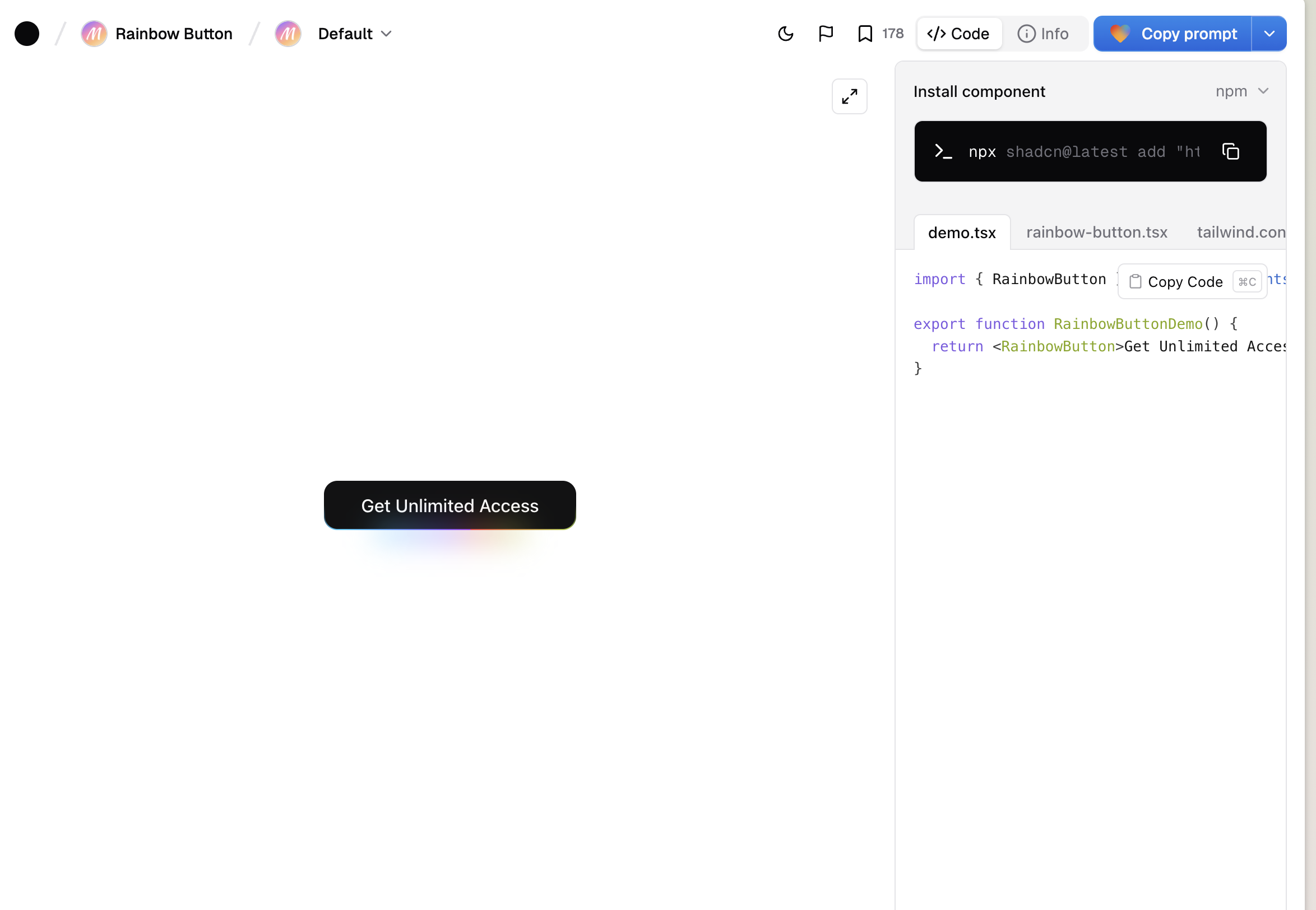 * Hero sections
* Navigation bars with hover effects
* Testimonial layouts
* CTAs and feature grids
Find a component you like, copy the prompt, and paste it into Lovable. Be sure to match the visual tone with the rest of the site.
AI saves time, but expect cleanup:
* Hero sections
* Navigation bars with hover effects
* Testimonial layouts
* CTAs and feature grids
Find a component you like, copy the prompt, and paste it into Lovable. Be sure to match the visual tone with the rest of the site.
AI saves time, but expect cleanup:
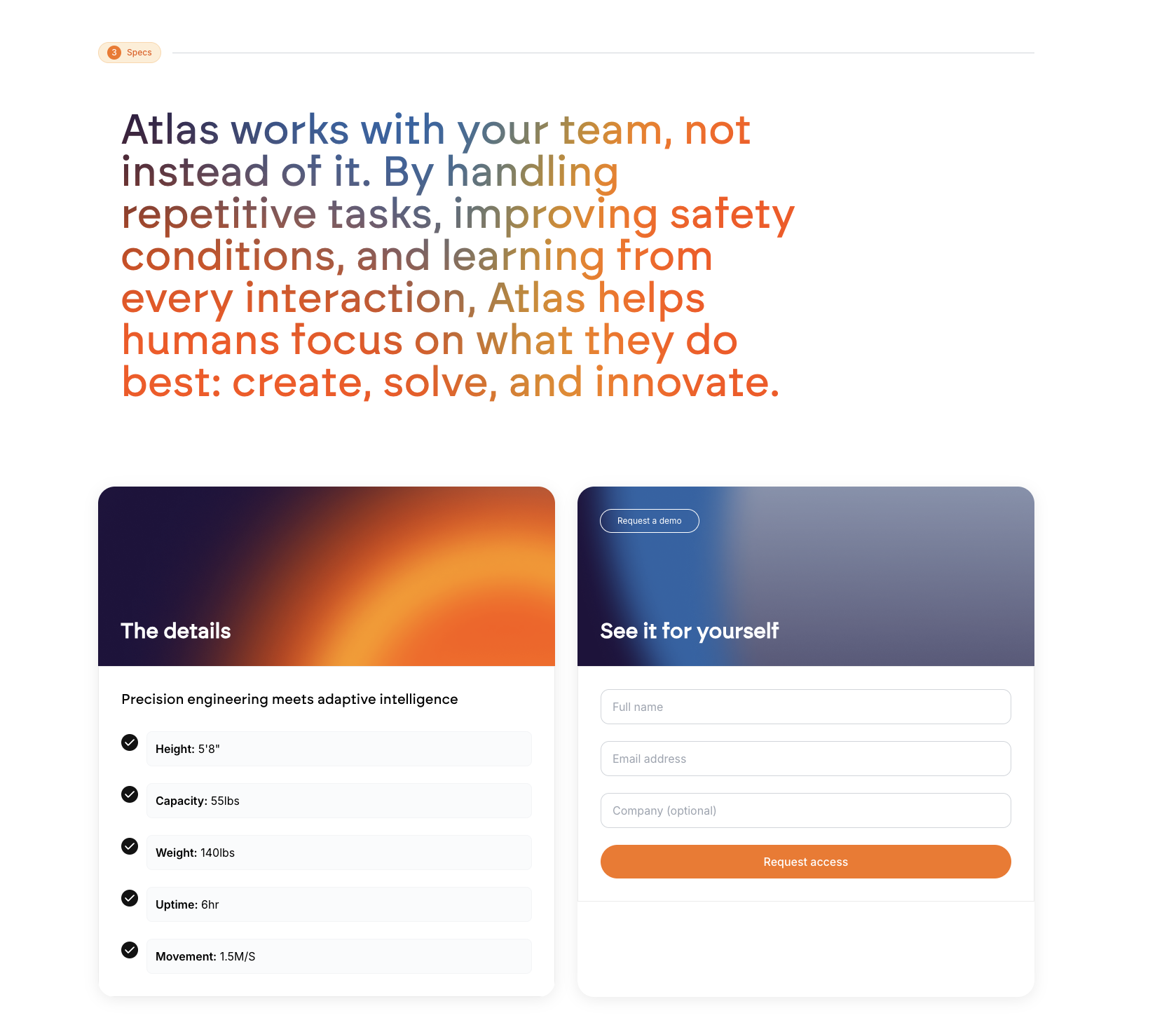 * Adjust branding (Lovable defaults to blue)
* Improve spacing and padding manually
* Use consistent typography throughout
* Add gradients or depth for a non-flat look
Make the design feel *intentional*, not "default."
Don’t skip this. Ensure:
* Adjust branding (Lovable defaults to blue)
* Improve spacing and padding manually
* Use consistent typography throughout
* Add gradients or depth for a non-flat look
Make the design feel *intentional*, not "default."
Don’t skip this. Ensure:
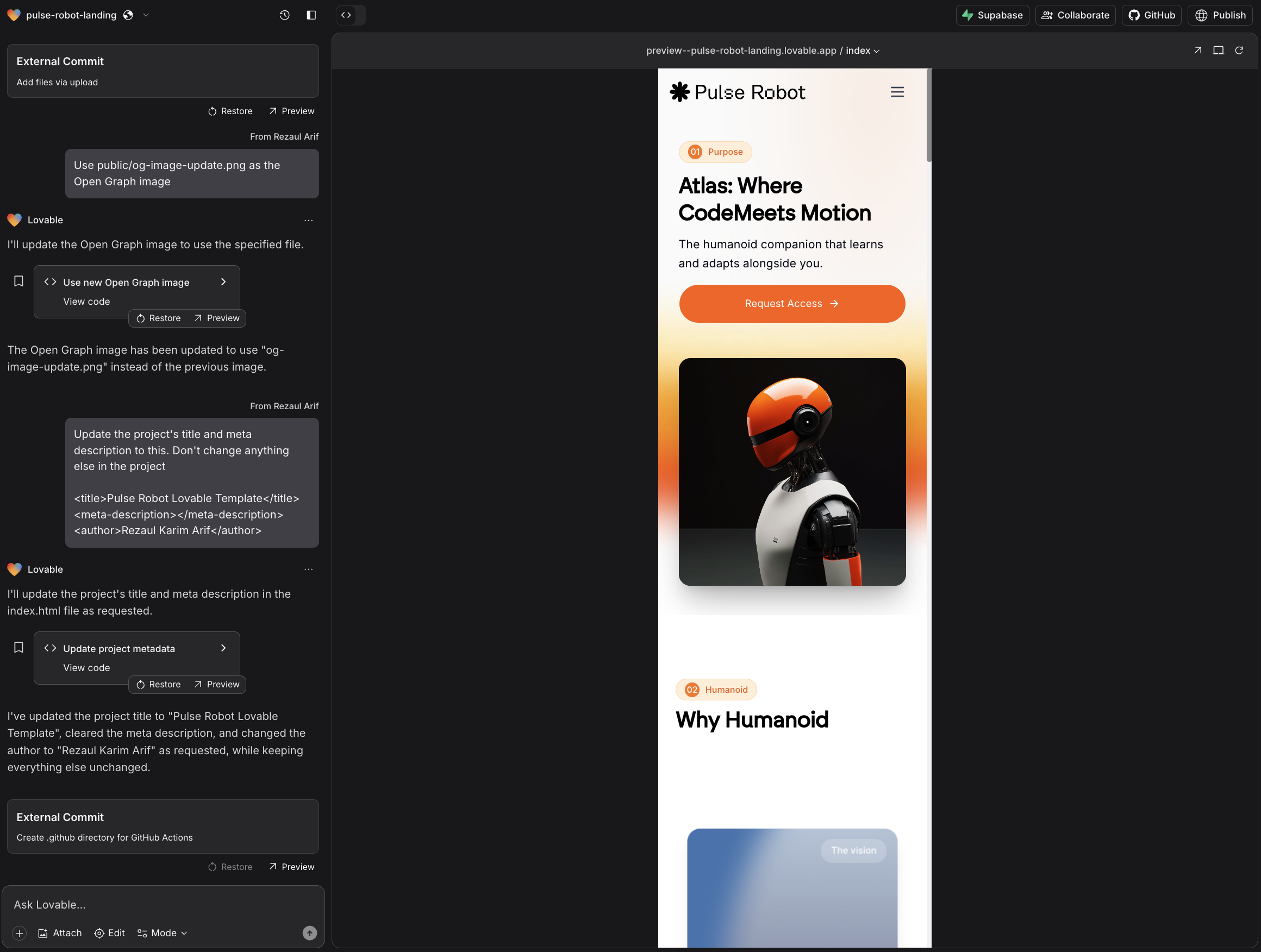 * Inputs go full-width
* Font sizes adapt to smaller screens
* Buttons are tap-friendly
* Sections stack well and scroll smoothly
Mobile UX is critical for conversions.
To modernize the feel:
* Use fade-ins for hero sections
* Add button hover effects
* Animate sections on scroll
* Use subtle background movement
Lovable can integrate [Framer Motion](https://motion.dev/) out-of-the-box if prompted right.
* Inputs go full-width
* Font sizes adapt to smaller screens
* Buttons are tap-friendly
* Sections stack well and scroll smoothly
Mobile UX is critical for conversions.
To modernize the feel:
* Use fade-ins for hero sections
* Add button hover effects
* Animate sections on scroll
* Use subtle background movement
Lovable can integrate [Framer Motion](https://motion.dev/) out-of-the-box if prompted right.
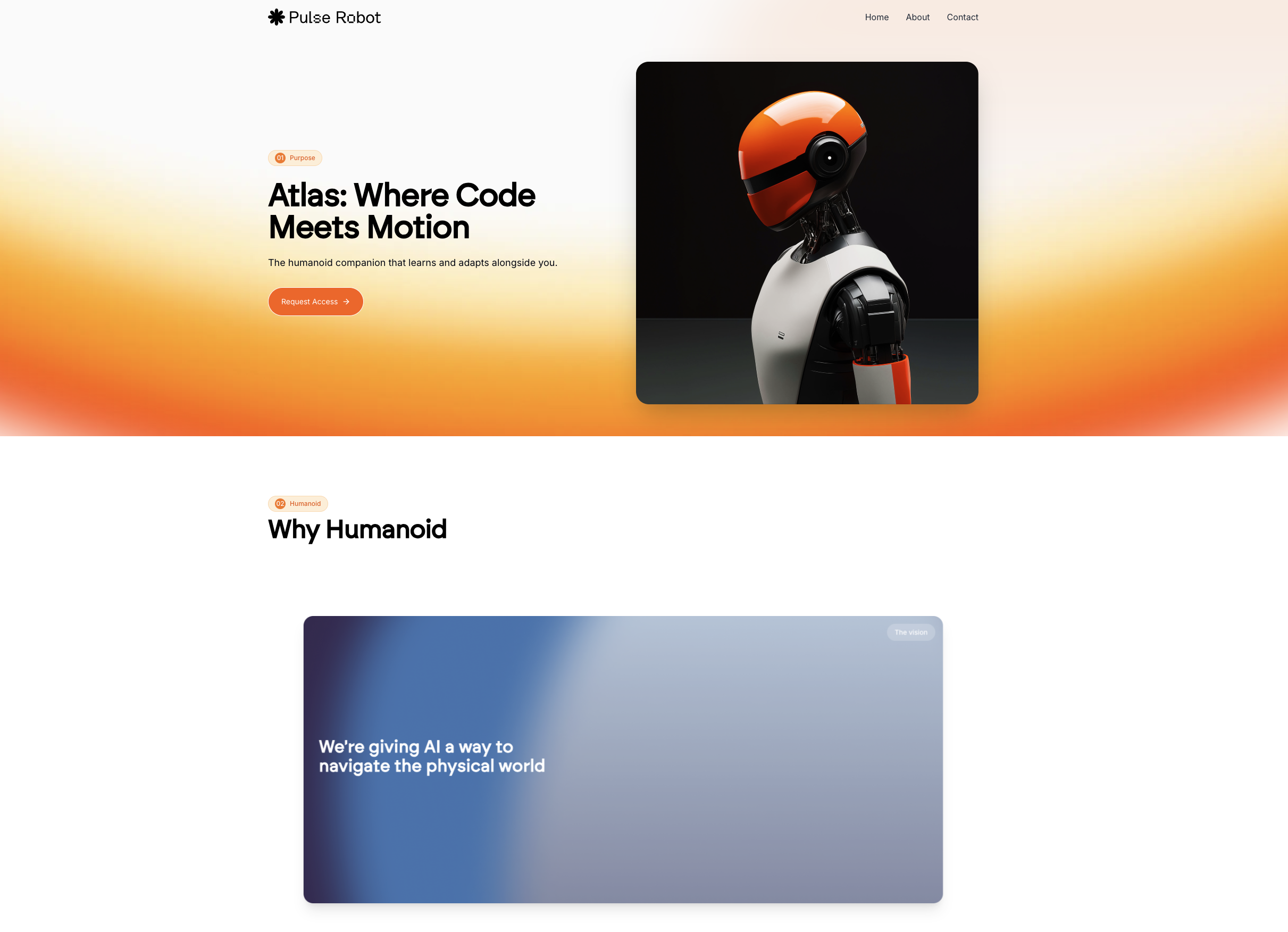 Craft prompts for ChatGPT, Midjourney or Ideogram based on your favorite elements from the reference design.
**Steps:**
The latest ChatGPT 4o seems worth the test.
This is especially useful for 3D visuals or thematic illustrations.
Once you’re happy with the result:
* Click "Deploy" in Lovable
* Connect a custom domain via Netlify
Your site goes live in minutes. No manual setup needed.
Copy the public link and share with your client. They can:
* Review it live
* Suggest tweaks
* Approve quickly
You can continue refining sections using Lovable’s visual or prompt-based editor. It’s a fast iteration loop.
## Why this approach works?
AI isn't magic. But with structure, it becomes a superpower. Compared to unstructured prompting:
* The first draft is 10x closer to done
* You spend less time fixing errors
* Every section has a purpose
* The final product feels custom, not cookie-cutter
It’s a blend of automation **+** craftsmanship.
## Key takeaways
* Start with strong visual inspiration
* Use structured prompts with Lovable Chat Mode
* Add screenshots and clarify expectations
* Upgrade sections using 21stdev components
* Fix design quirks and optimize for mobile
* Animate where it matters
* Deploy fast, iterate faster
This is the workflow [Prajwal](https://x.com/PrajwalTomar_/status/1902371273147064772) uses everyday for his clients - that we tried in-house - to build fast, beautiful, high-converting landing pages—powered by Lovable AI but guided by intention.
Happy Building!
## More resources
* [Brock Mesarich's tutorial](https://www.youtube.com/watch?v=v48gJFQvE1Y\&pp=ygUPbG92YWJsZSAyMXN0ZGV2)
* Lukas Margerie's tutorial ([1](https://www.youtube.com/watch?v=-GiBI0leMHU\&t=30s\&pp=ygUPbG92YWJsZSAyMXN0ZGV2) - [2](https://www.youtube.com/watch?v=uqdFobvoRQQ\&pp=ygUPbG92YWJsZSAyMXN0ZGV20gcJCb0Ag7Wk3p_U))
* [AI Jason's tutorial](https://www.youtube.com/watch?v=8MPElOdNjtk\&pp=ygUPbG92YWJsZSAyMXN0ZGV2)
* [Mark Kashef's tutorial](https://www.youtube.com/watch?v=Zv7N0SxfpRM\&t=269s\&pp=ygUPbG92YWJsZSAyMXN0ZGV2)
* [Alejavi Rivera's tutorial](https://www.youtube.com/watch?v=mMBp0uGZOWw\&pp=ygUPbG92YWJsZSAyMXN0ZGV2) (spanish)
* [Fazt Code's tutorial](https://www.youtube.com/watch?v=RGZeP1_oMoY\&pp=ygUPbG92YWJsZSAyMXN0ZGV2)
Craft prompts for ChatGPT, Midjourney or Ideogram based on your favorite elements from the reference design.
**Steps:**
The latest ChatGPT 4o seems worth the test.
This is especially useful for 3D visuals or thematic illustrations.
Once you’re happy with the result:
* Click "Deploy" in Lovable
* Connect a custom domain via Netlify
Your site goes live in minutes. No manual setup needed.
Copy the public link and share with your client. They can:
* Review it live
* Suggest tweaks
* Approve quickly
You can continue refining sections using Lovable’s visual or prompt-based editor. It’s a fast iteration loop.
## Why this approach works?
AI isn't magic. But with structure, it becomes a superpower. Compared to unstructured prompting:
* The first draft is 10x closer to done
* You spend less time fixing errors
* Every section has a purpose
* The final product feels custom, not cookie-cutter
It’s a blend of automation **+** craftsmanship.
## Key takeaways
* Start with strong visual inspiration
* Use structured prompts with Lovable Chat Mode
* Add screenshots and clarify expectations
* Upgrade sections using 21stdev components
* Fix design quirks and optimize for mobile
* Animate where it matters
* Deploy fast, iterate faster
This is the workflow [Prajwal](https://x.com/PrajwalTomar_/status/1902371273147064772) uses everyday for his clients - that we tried in-house - to build fast, beautiful, high-converting landing pages—powered by Lovable AI but guided by intention.
Happy Building!
## More resources
* [Brock Mesarich's tutorial](https://www.youtube.com/watch?v=v48gJFQvE1Y\&pp=ygUPbG92YWJsZSAyMXN0ZGV2)
* Lukas Margerie's tutorial ([1](https://www.youtube.com/watch?v=-GiBI0leMHU\&t=30s\&pp=ygUPbG92YWJsZSAyMXN0ZGV2) - [2](https://www.youtube.com/watch?v=uqdFobvoRQQ\&pp=ygUPbG92YWJsZSAyMXN0ZGV20gcJCb0Ag7Wk3p_U))
* [AI Jason's tutorial](https://www.youtube.com/watch?v=8MPElOdNjtk\&pp=ygUPbG92YWJsZSAyMXN0ZGV2)
* [Mark Kashef's tutorial](https://www.youtube.com/watch?v=Zv7N0SxfpRM\&t=269s\&pp=ygUPbG92YWJsZSAyMXN0ZGV2)
* [Alejavi Rivera's tutorial](https://www.youtube.com/watch?v=mMBp0uGZOWw\&pp=ygUPbG92YWJsZSAyMXN0ZGV2) (spanish)
* [Fazt Code's tutorial](https://www.youtube.com/watch?v=RGZeP1_oMoY\&pp=ygUPbG92YWJsZSAyMXN0ZGV2)